


Choose PostScript when the receiving workflow asks for a .ps file. This tool creates that file; it does not select a printer or submit a print job. Confirm the required format with the destination before converting.
Open an SVG
Open SVG to PS. Select Choose SVG file or drop one SVG into the upload area. To follow the example, choose Use sample SVG. The limit is one SVG up to 5 MB.
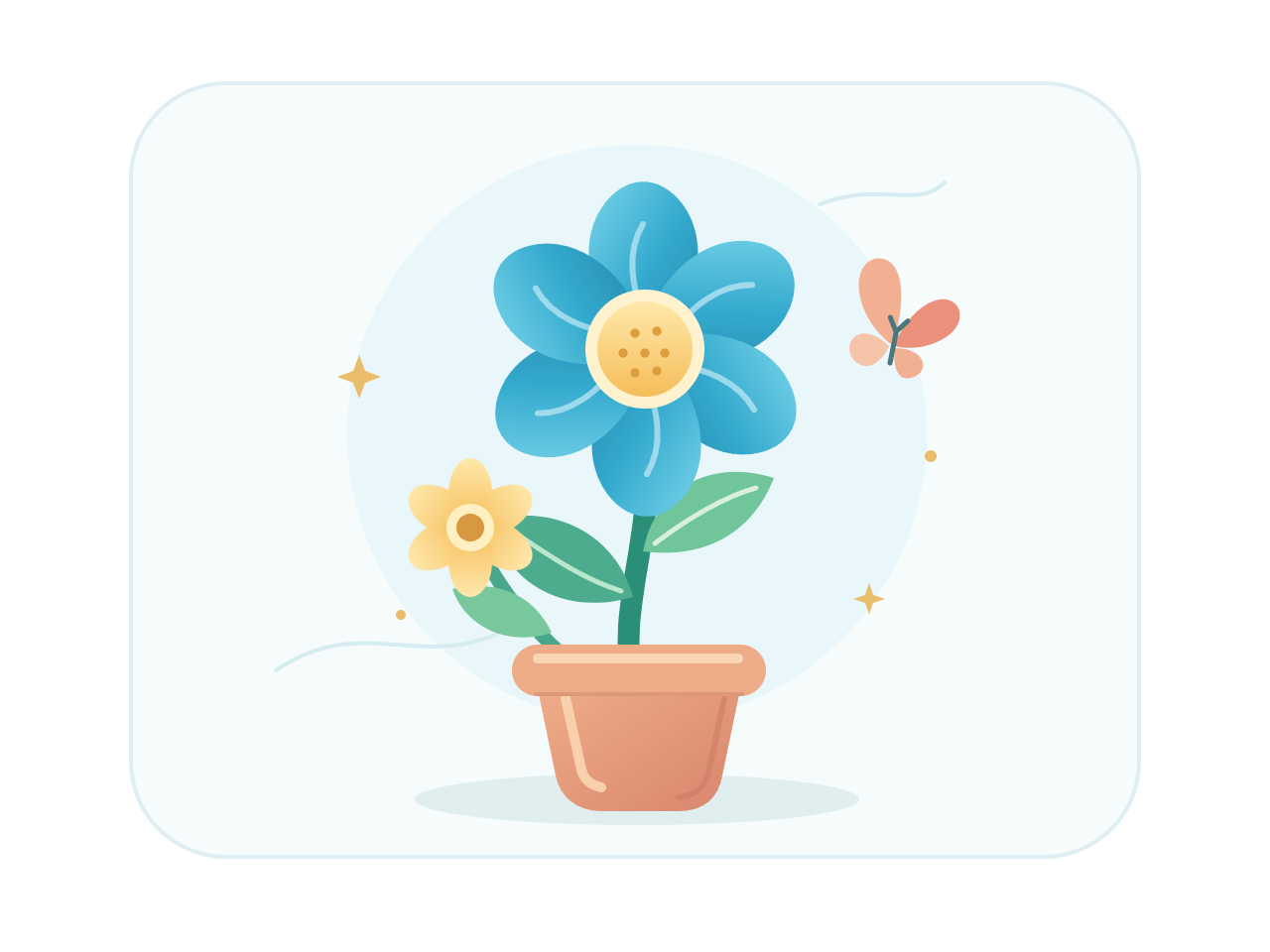
The sample, creative.svg, uses a 640 by 480 px canvas. Review the flower and the space around it in the source preview.
Review the page
The converter does not offer a pixel-width menu, paper presets, margins, printer settings, or a color-profile selector. Prepare the layout in your SVG before converting.
Convert to PS
Select Convert to PS. The source is processed on the server. When the download screen appears, select Download PS to save creative.ps.
Our verified file is 181,499 bytes, with a PostScript header and one declared page. The comparison above shows a render of that actual download.
Check the output
Open the saved file with PostScript-compatible software and review the page area, shapes, colors, and small details. A web browser may offer a download instead of showing a preview; that does not by itself mean the file is invalid.
Check the file against the requirements of the application or print system that will receive it. If you need a document that is easier to view and share, use SVG to PDF.
Back to edit returns to the source preview. Convert another SVG starts another file. Refreshing the editor or download page returns to the starting page.
Common questions
Does this tool send the artwork to my printer?
No. It downloads a .ps file. Opening, processing, or printing that file is a separate step in your chosen software or print system.
Should I choose PS or EPS?
Use the format requested by the destination. PS describes a print-oriented page or document; EPS is commonly used as a placement graphic. The SVG to EPS tool is available when EPS is required.
Does converting to PS turn a bitmap into vector artwork?
No. Embedded images remain raster content. Conversion does not trace them into editable vector paths.
Can I choose printer resolution or a color profile?
There are no printer-resolution or color-profile controls in this converter. Set up and verify those requirements in the software responsible for production.
Your SVG is sent to our server when you convert. Download access expires after one hour; expired server results are cleaned up during later conversions. Read about file privacy.
Prepare a PS file for your workflow.
Start with the sample, or bring your own SVG.


