

Choose JPG when a document editor, image upload form, or other destination specifically needs JPEG. If the artwork needs to sit over a colored background without a white rectangle, PNG is the better output to consider.
Open your SVG
Open SVG to JPG. Use Choose SVG file or drop a single SVG into the upload area. To reproduce this guide, select Use sample SVG. The upload limit is 5 MB.
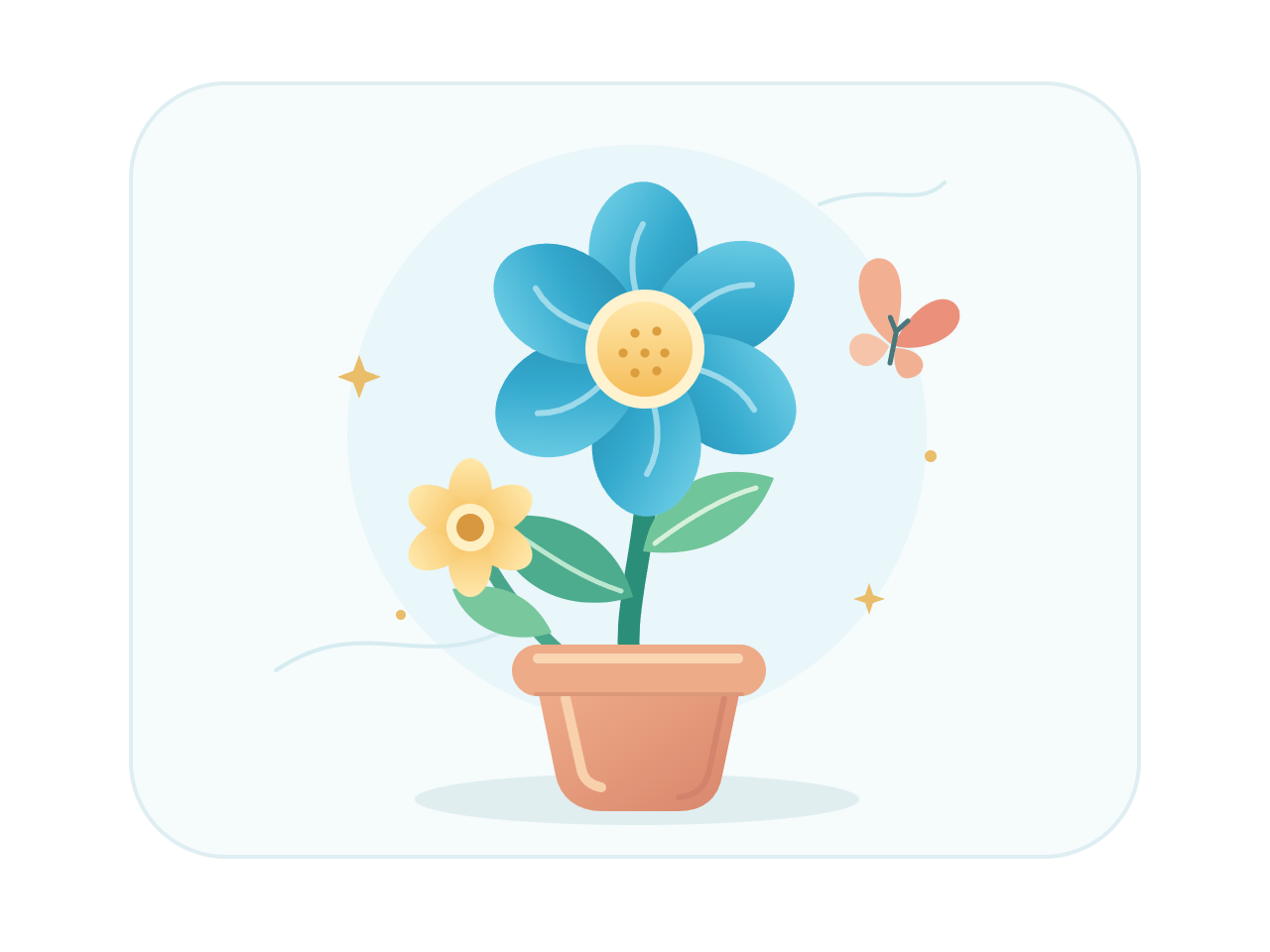
The editor shows the original source. In creative.svg, the flower sits on a pale rounded rectangle inside a 640 by 480 px canvas. Space outside that rectangle is transparent in the source.
Set the image width
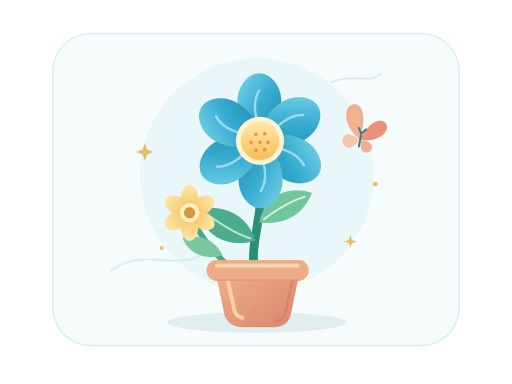
Set Image width to 512 px. The converter keeps the source proportions and produces a 512 by 384 px JPG for this sample.
The menu also offers Original size, 1024, 2048, and 4096 px. Choose a width based on where you will use the image. A larger exported JPG needs more pixels; it does not become a vector file.
There is no separate height or quality slider. Height follows the SVG proportions. Very tall artwork may require a smaller width to stay within the 4096 px height limit.
Create the JPG
Select Convert to JPG. The server renders the SVG on a white background and creates the JPEG output.
Download and review
On the result screen, select Download JPG. The example downloads as creative.jpg: 512 by 384 px, 18,644 bytes.
Open the file and inspect small details and colored edges at its intended display size. JPG uses lossy compression, so it can introduce changes around sharp shapes. Use Back to edit to try a different width, or Convert another SVG to begin again. A page refresh starts a new conversion.
Common questions
Are JPG and JPEG different formats?
They refer to the same image format. This converter saves the result with the .jpg extension.
Can I choose a different background color?
This converter fills transparent areas with white and has no background-color control. Prepare the desired background in your SVG before converting.
Will every SVG effect look the same?
Not necessarily. The server removes scripts, external resources, and SVG filters. Fonts and unsupported effects can also change appearance, so inspect the downloaded file.
Is JPG always smaller than PNG?
No. Size depends on the artwork, dimensions, and encoding. In this verified sample, the JPG is smaller than the PNG at the same width. Other artwork may produce a different result, so choose the format for its behavior as well as its file size.
Your SVG is sent to our server when you convert. Download access expires after one hour; expired server results are cleaned up during later conversions. Read about file privacy.
Make a JPG that fits your next destination.
Start with the sample, or bring your own SVG.


