


PNG is a useful choice when an app accepts images but cannot use SVG, or when you want to place clipart over another design. The important decisions are how many pixels you need and whether your source actually contains transparent space.
Upload your SVG
Open SVG to PNG. Select Choose SVG file, drop one SVG into the upload area, or select Use sample SVG to follow this example. The tool accepts one SVG up to 5 MB.
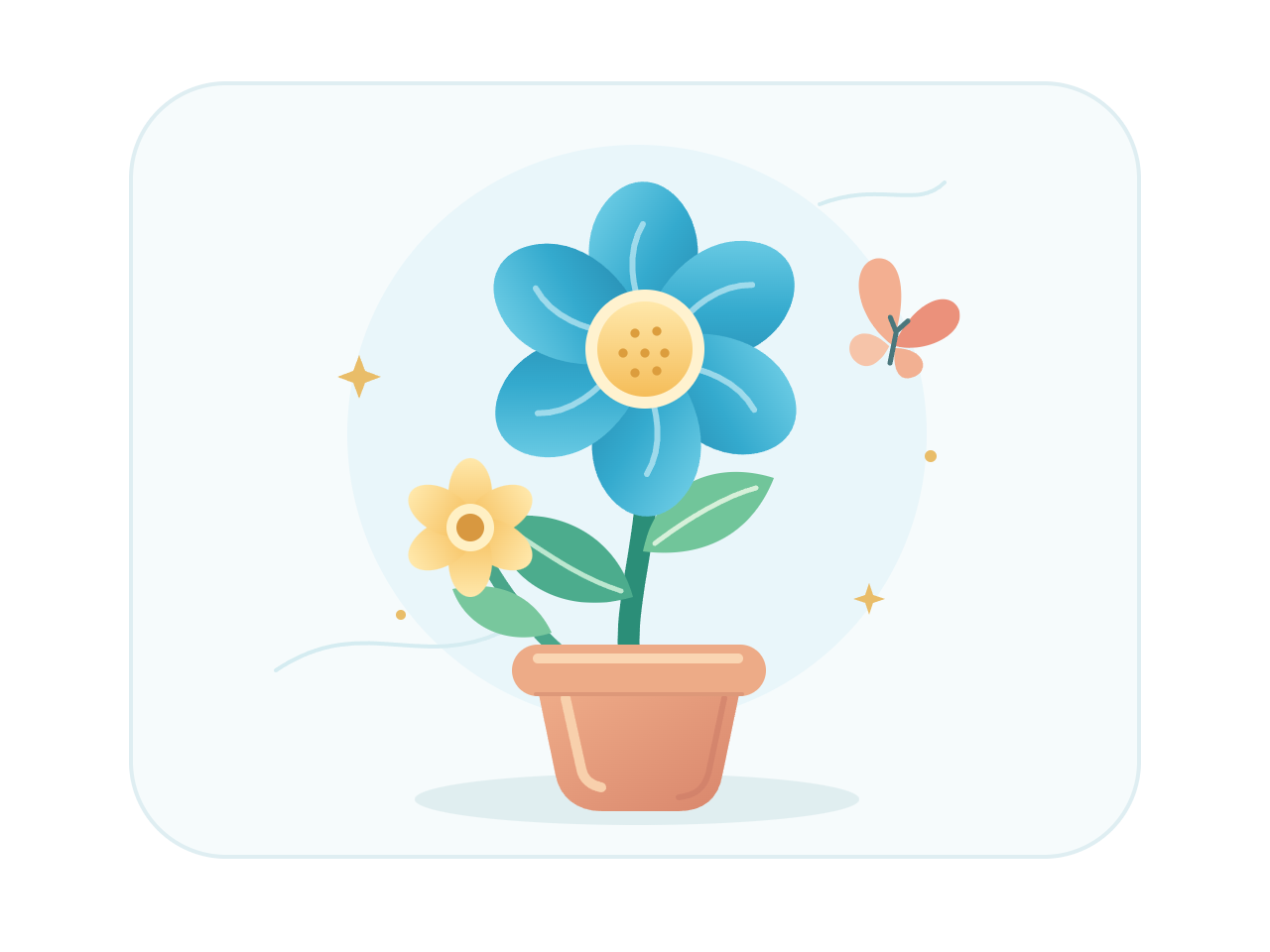
The sample, creative.svg, has a 640 by 480 px canvas. It contains a flower on a pale rounded rectangle, with empty space around that rectangle. Check the source preview before continuing.
Choose the image width
Under Image width, choose 512 px. The height follows the source proportions, so this sample becomes 512 by 384 px. You do not need to enter a height.
Very large source canvases are normalized to fit within 4096 px on their longest edge. A tall image may need a smaller width to keep its height within the same limit.
Convert to PNG
Select Convert to PNG. The file is sent to the server for conversion, and the download screen appears when the result is ready.
In this example, the empty space around the pale rectangle remains transparent. The pale rectangle itself is drawn into the SVG, so it stays visible. PNG supports transparency, but conversion does not erase a background shape that is already part of your artwork.
Download your image
Select Download PNG to save creative.png. Our verified example is 512 by 384 px and 34,316 bytes. Open the saved file in your image editor and place it over a color to check its transparent edges.
Use Back to edit to choose a different width, or Convert another SVG to start with another file. Refreshing the editor or download page returns to the tool's starting page.
Common questions
Why is my PNG background still white?
A white rectangle drawn inside the SVG is part of the artwork. This converter preserves painted shapes; it does not automatically remove their background.
Does converting to PNG keep the image as a vector?
No. PNG is a pixel image. Keep your original SVG for future resizing or vector editing, and export a PNG at the size needed for its destination.
What if I need a white background instead?
Use SVG to JPG for an opaque image. The JPG converter fills transparent areas with white.
Can I convert several SVGs together?
This tool processes one SVG at a time. Download the result, then use Convert another SVG for the next file.
Your SVG is sent to our server when you convert. Download access expires after one hour; expired server results are cleaned up during later conversions. Read about file privacy.
Give your artwork the right pixel size.
Start with the sample, or bring your own SVG.


